
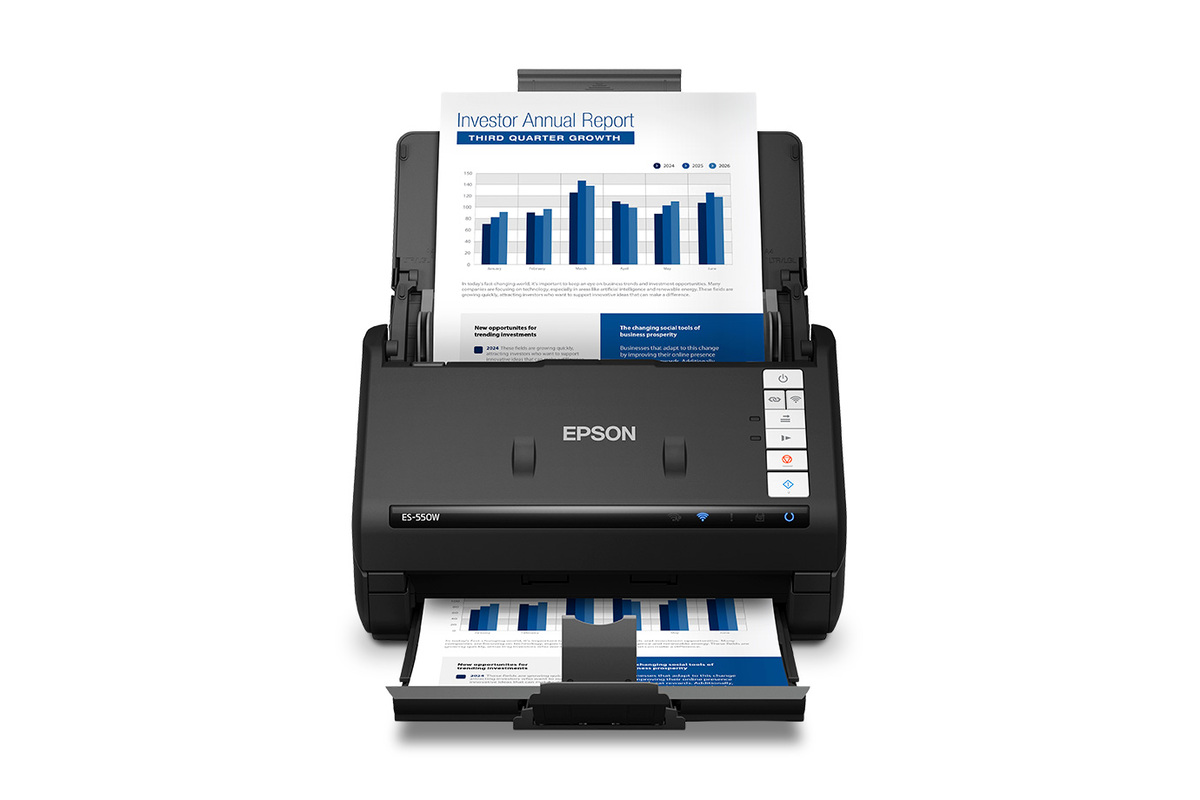
On May 19th, we reported on the new line of Epson scanners that are AI ready. Included in that announcement was the Epson Workforce ES-550W.
Disclosure: Apple Tech Talk participates in various affiliate marketing programs and may receive compensation if you purchase a product through one of our links, and/or in the form of product donations from the companies whose products we review . Unless otherwise specifically stated, Apple Tech Talk does not receive any other compensation for its reviews. The opinions expressed are based solely on our independent testing, are our own and are not shared with anyone prior to release on our site.
The folks at Epson were kind enough to provide us with a unit to test and while we had some initial reservations, the Epson ES-550W proved us wrong on all accounts.
Epson ES-550W – Unboxing
In the box is the ES-550W scanner along with the usual accessories.
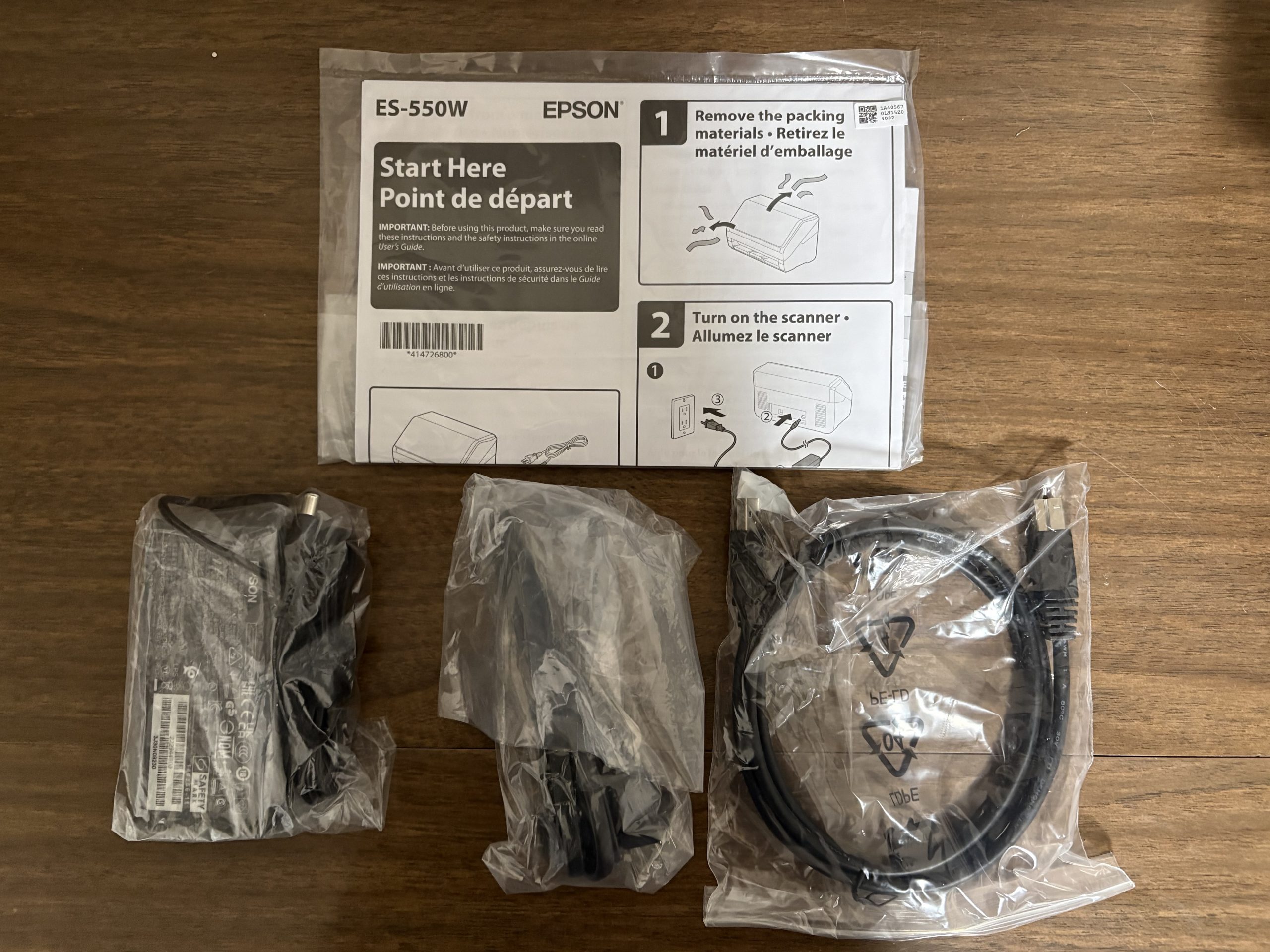
This includes the somewhat standard Epson power supple, a U.S. 2-prong power cord, a USB-A to USB-B cable to connect to your computer (if needed) and a Quick Start Guide.
Epson ES-550W – Set-up
Long gone are the days when you got a CD packed with new equipment to allow you to set up the device.
Instead, Epson provides a URL in the Quick-Start guide which takes you to the appropriate site to down load everything you need to get the ES-550W scanner up and running.
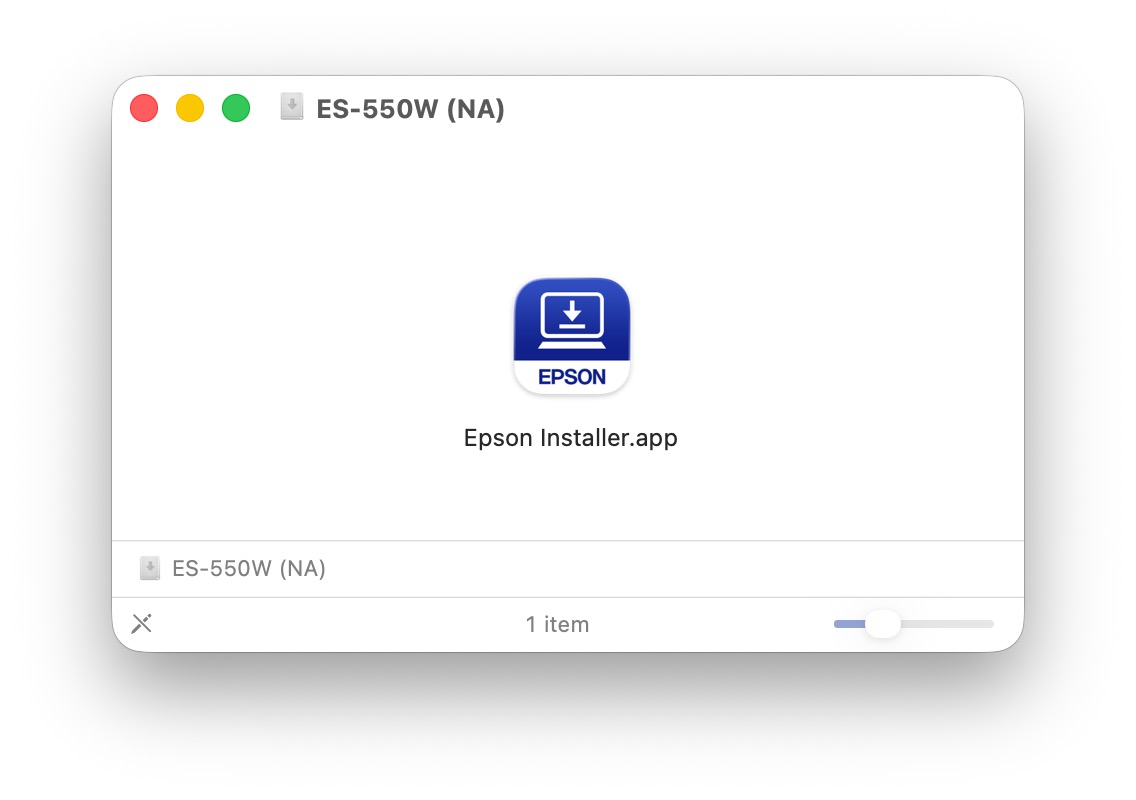
After a quick download of the .dmg file, a simple click opens the installer program.
Our Initial attempt to set up network connection failed, which is unusual given that we have never had that kind of a problem before with an Epson product.

Our second attempt went much better perhaps because we pressed the Wi-Fi Connect button on the scanner. We’re really not sure if that made a difference since there was nothing in the on-line directions that suggested we do that, or perhaps there was just a hiccup in our network. In any case, this attempt worked flawlessly and it only took a couple of minutes for the scanner to be up and running.
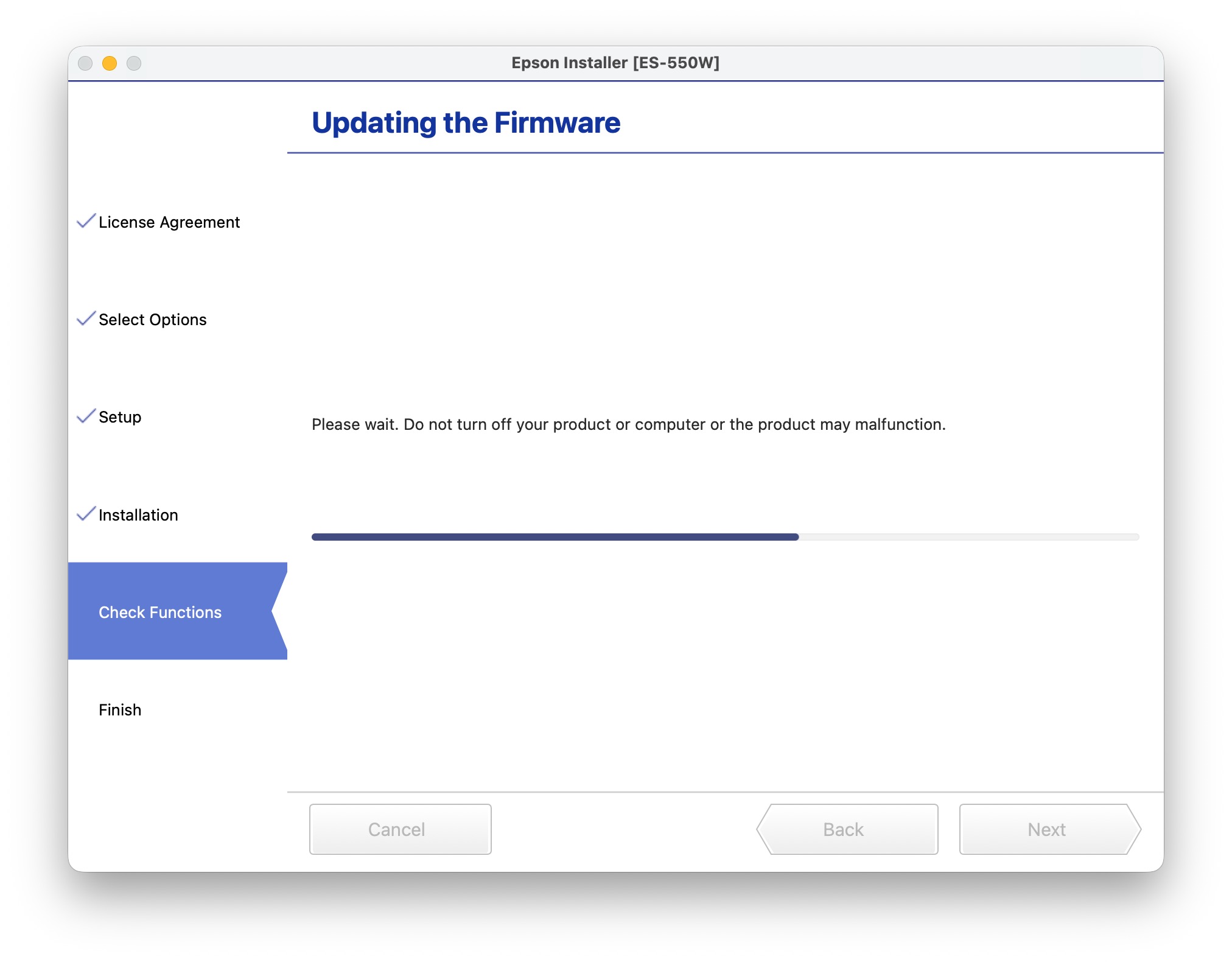
With the installation complete and the scanner connected to our network, it went ahead and checked for any needed firmware updates and completed that.
Epson ES-550W vs. ES-580W – A Side-by-Side Comparison
Before receiving the ES-550W we used an Epson ES-580W scanner as our main scanner. Over the years, we have scanned hundreds of pages of documents, receipts and invoices without any major issues, paper jams or concerns.
When Epson introduced us to the ES-550W, they pointed out that unlike our ES-580W, the ES-550W did not have a touchscreen display and we wondered if we could really get by with a unit that had only a few buttons to operate it. More importantly, what important functionality would we be missing by not having a screen?
Here’s a spoiler alert. After using the ES-550W for several weeks, we didn’t find any real difference in our day-to-day usage between the ES-580W with a screen and the ES-550W without it.
Document Feed Tray
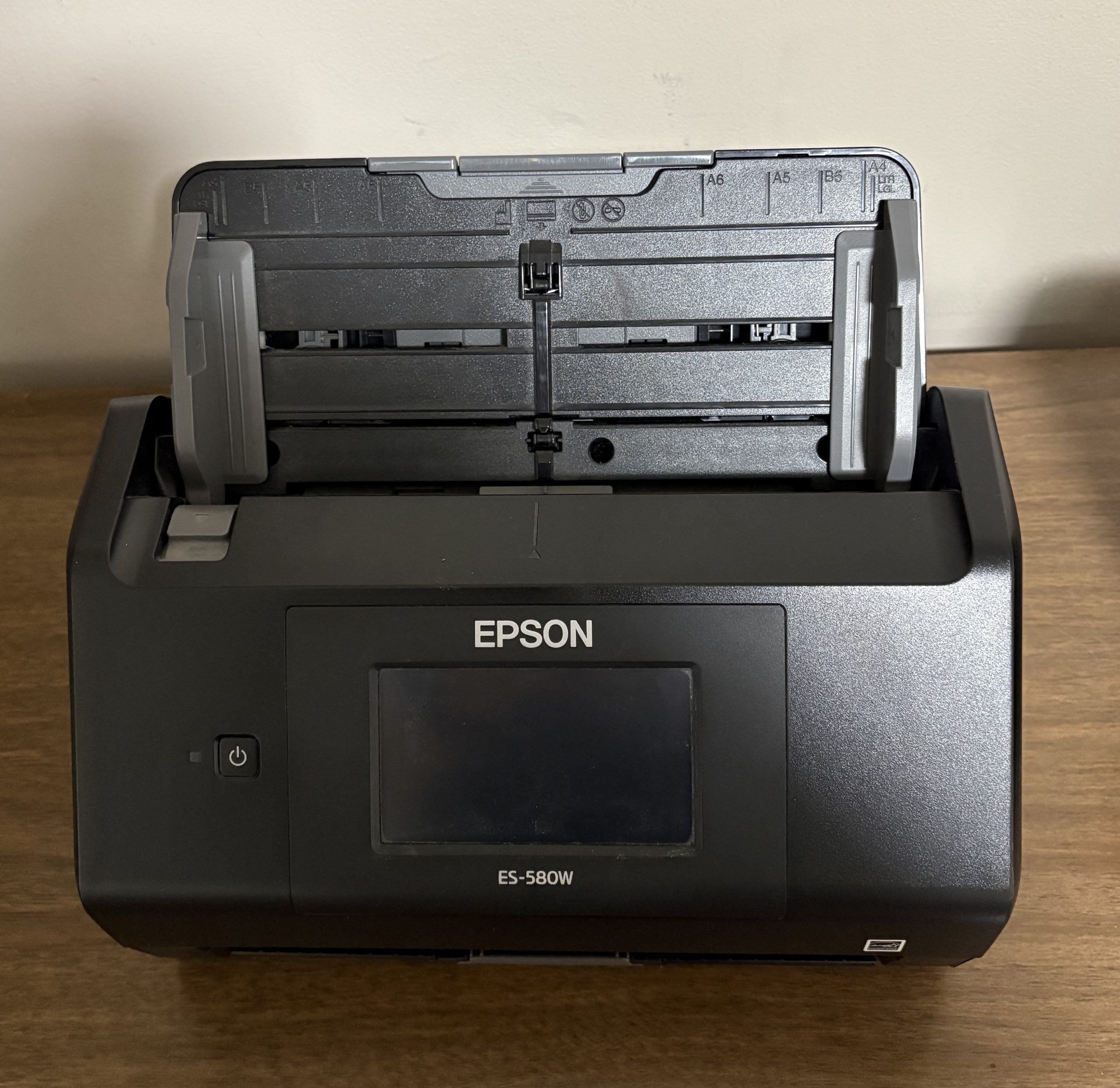
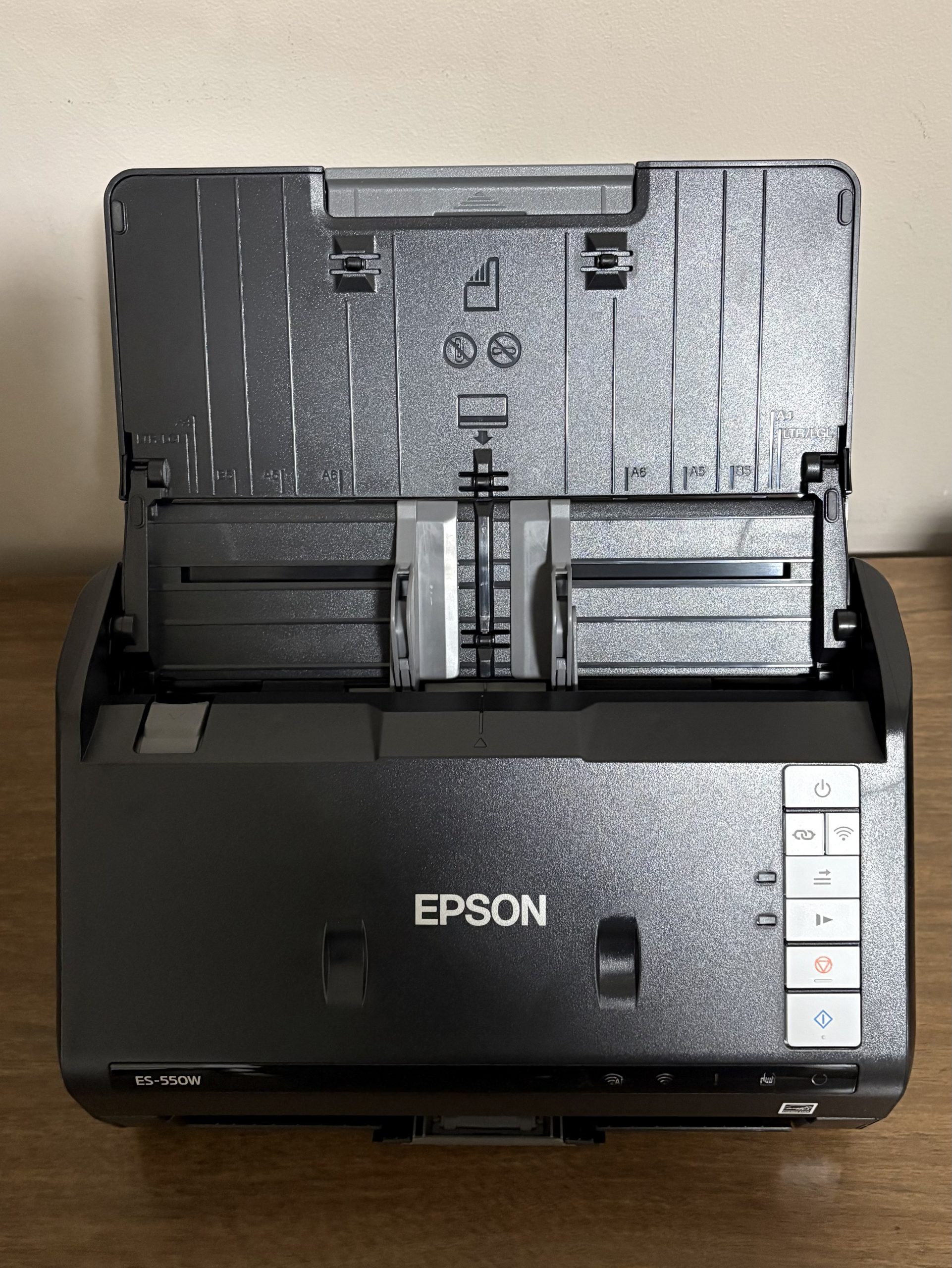
On the left is the ES-580W. As you can see, it has a small touch display that allows you to select a variety of functions. On the right is ES-550W without the touch screen.
Both units have a similar style document input tray although the tray on the ES-550W sits a bit taller. Even so, both units handled a variety of document sizes equally well.
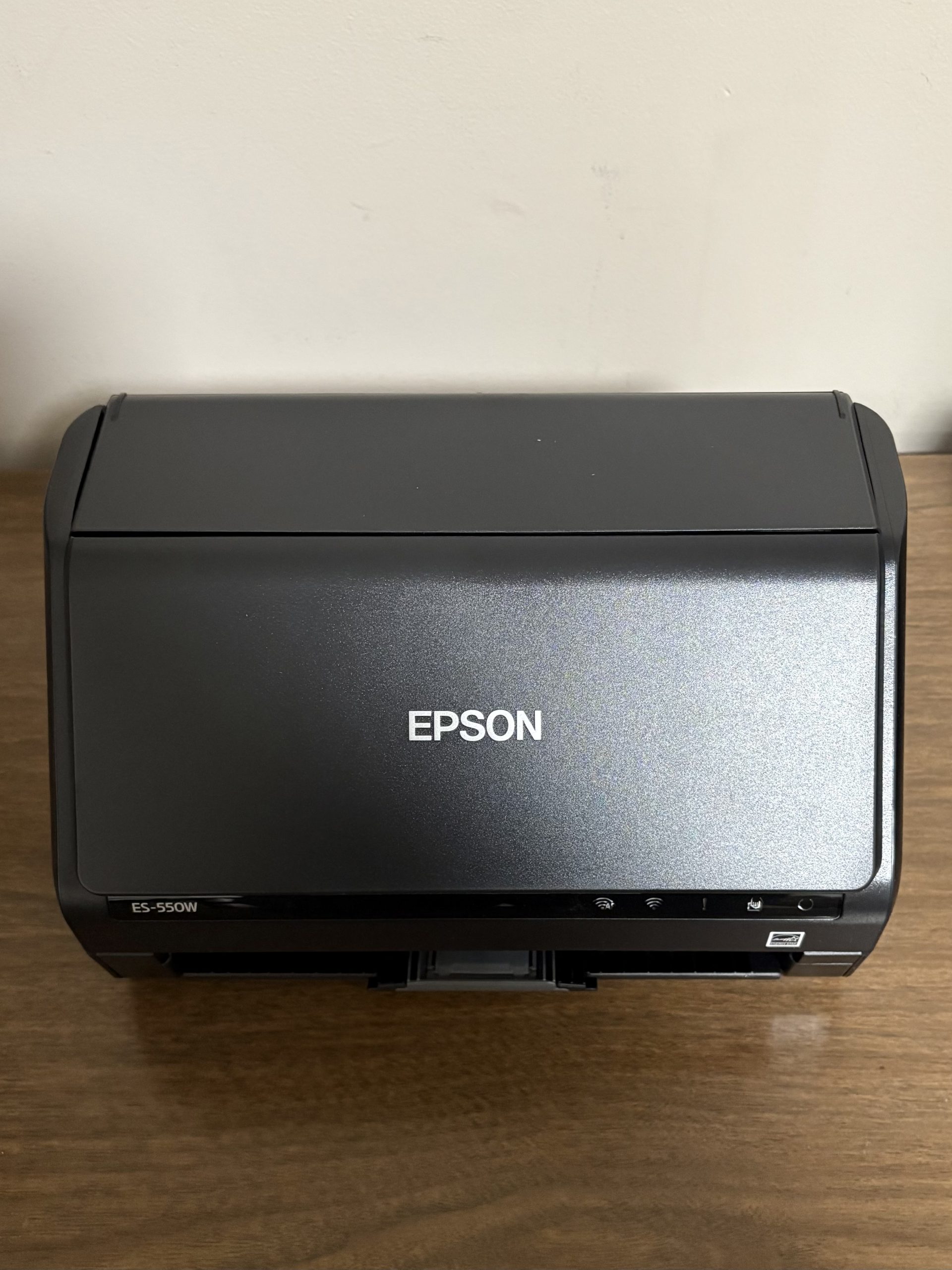
Perhaps the biggest difference is that the paper tray on the ES-550W folds forward and acts as a cover for the scanner when not in use.
This is obviously a matter of personal preference, and while there may be some benefit of protecting the rollers and other components from dust, we just prefer the look of it compared to always having the document tray exposed when the unit is not in use.
Rear Ports
Looking at the rear of each scanner does show a significant difference.
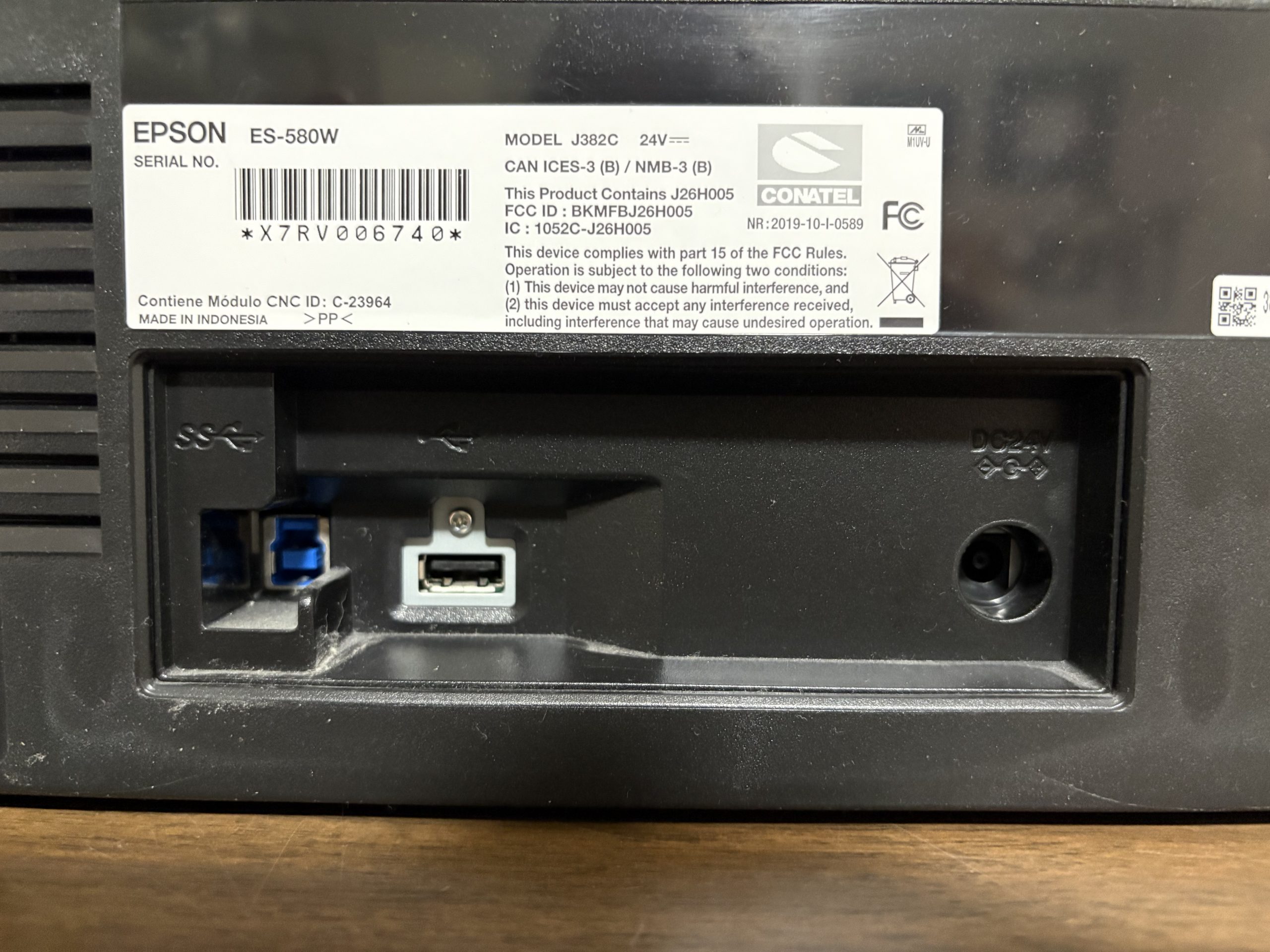
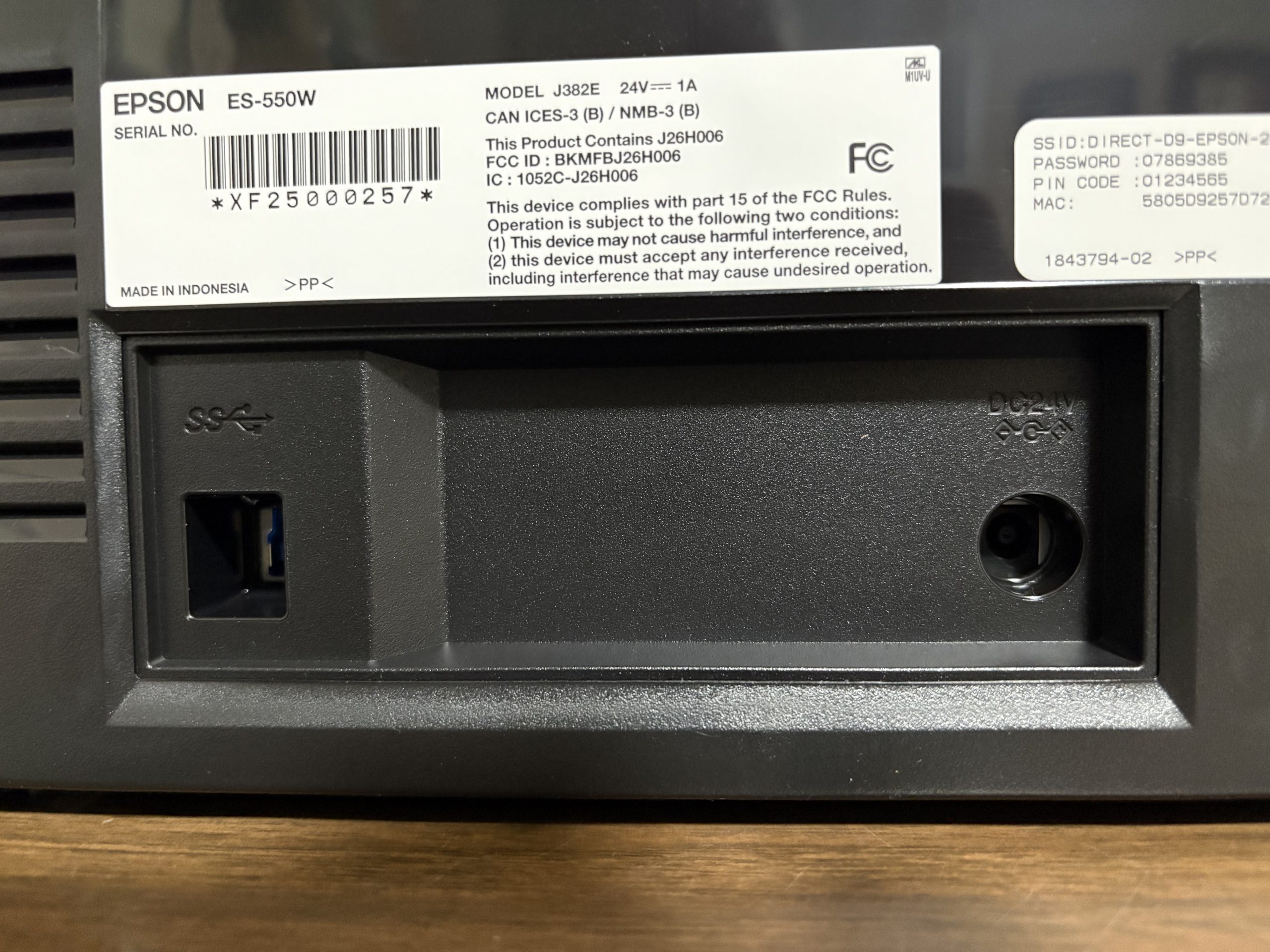
On the left is the ES-580W which has the power connection port, a USB-B connection to directly connect the scanner to a computer and a USB-A port. The ES-550W has the same power and USB-B ports, but no USB-A port.
The USB-A port on the ES-580W is designed to allow you to scan a document directly to a USB drive that can be connected to the USB-A port. In order to enable this functionality, you have to set it up via the touch screen.
However, we can honestly say that in the years that we have been using the ES-580W, we have never needed to use this functionality and actually didn’t even remember that the scanner had a USB-A port on the back.
But fear not. If this is a feature that is important to you, check out the Epson ES-590W which is the new, upgraded model which replaced our ES-580W and which includes a touch screen and the USB interface port.
Scanner Controls
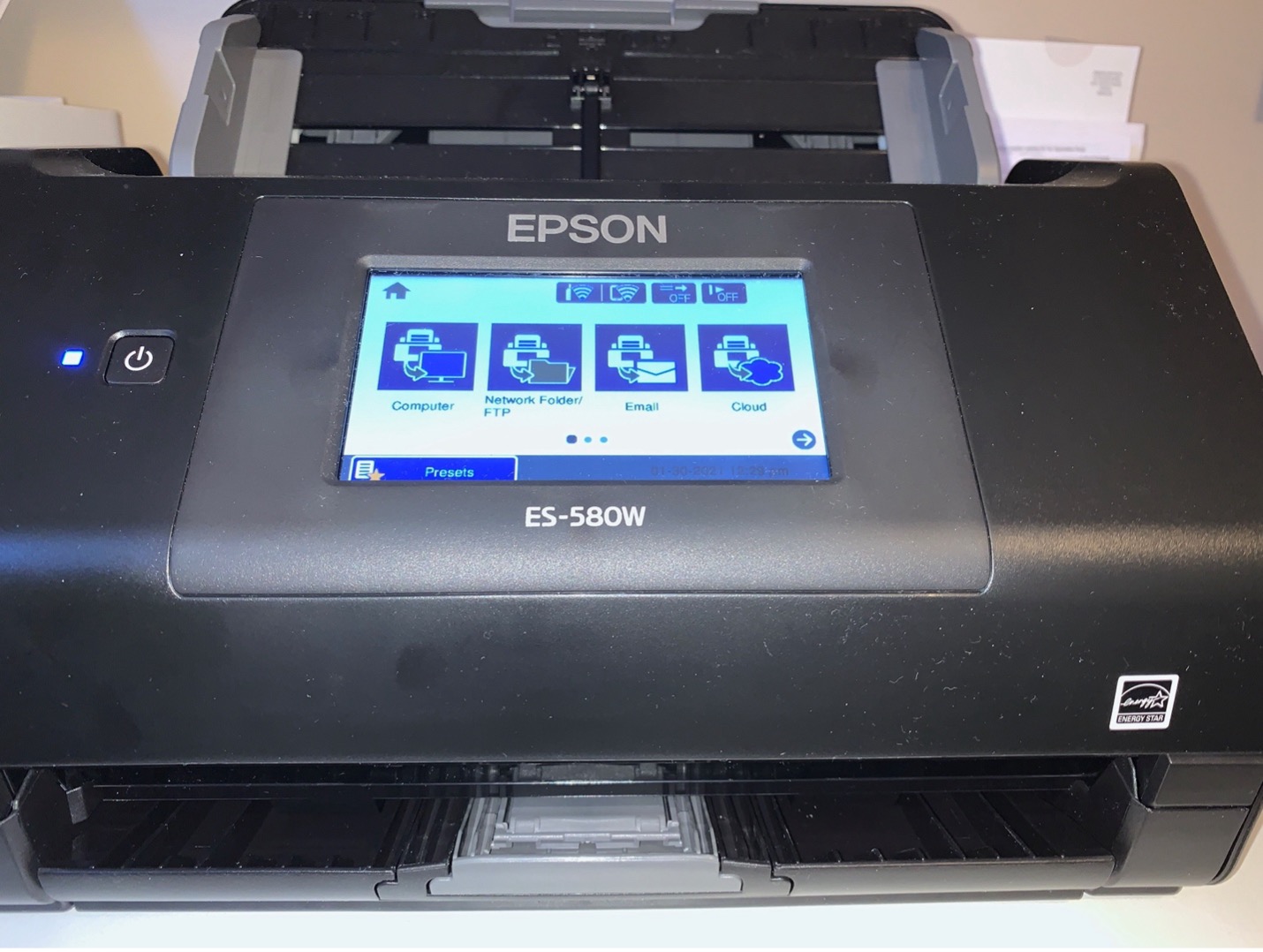
There is no question that the ES-580W (and its updated replacement the ES-590W) has functionality that is not available on the ES-550W. Functions like scanning direct to email and scanning direct to the cloud are not included on the ES-550W.
That is not to say that the lack of a touch screen or the functions that require the screen make the ES-550W any less of a workhorse.
Upon setting up the scanner, and even after that, we were prompted to ask if we wanted to assign the scanner directly to the MacBook we were using, so we could use one button scanning.
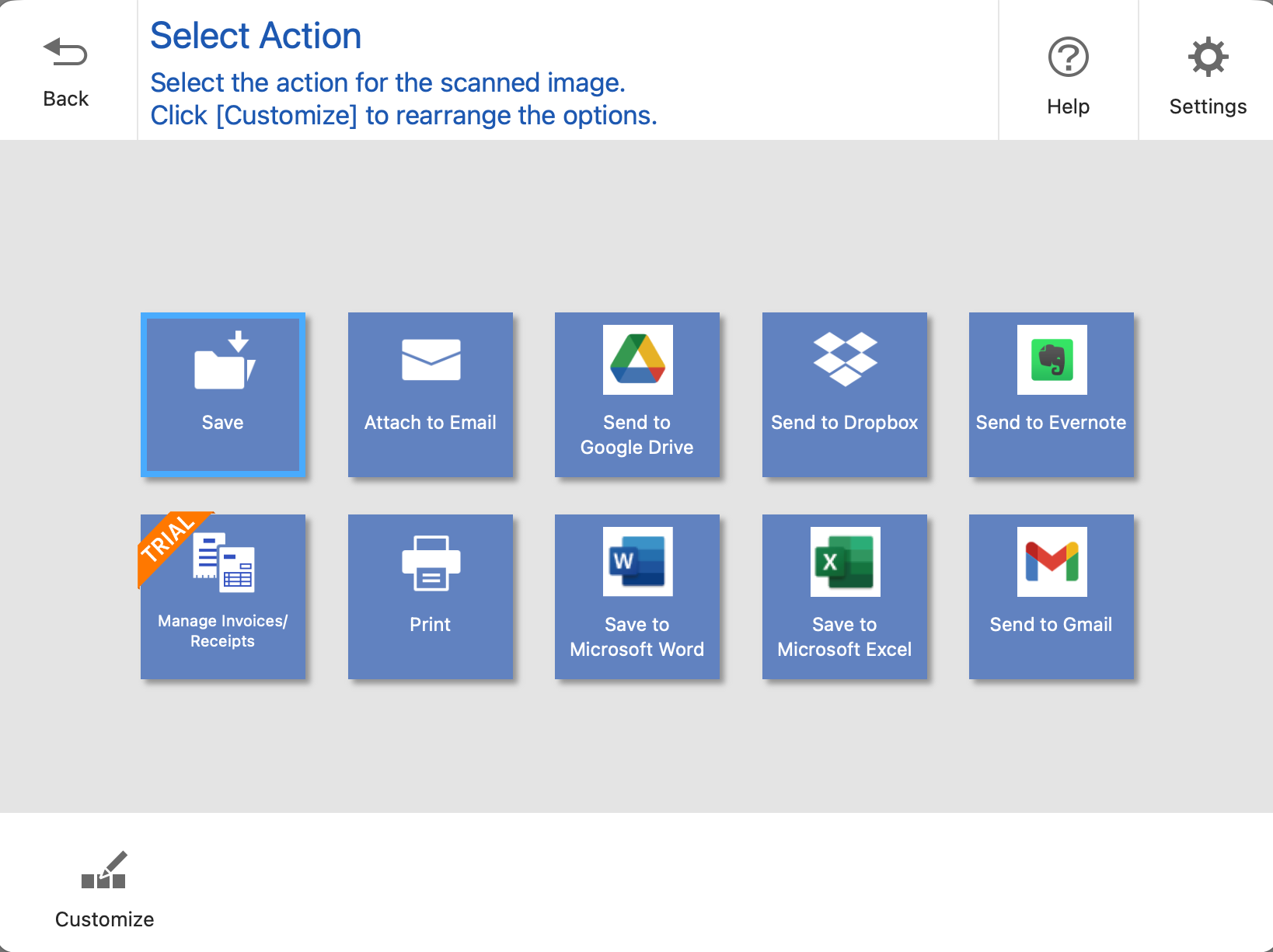
It is also important to remember the the ScanSmart application offers a variety of options including, attaching the scan to an email, saving as a Word or Excel file and saving to various cloud services. In our opinion, the puts the versatility of the ES-550W on par with that of the ES-580, although the process might be slightly different.
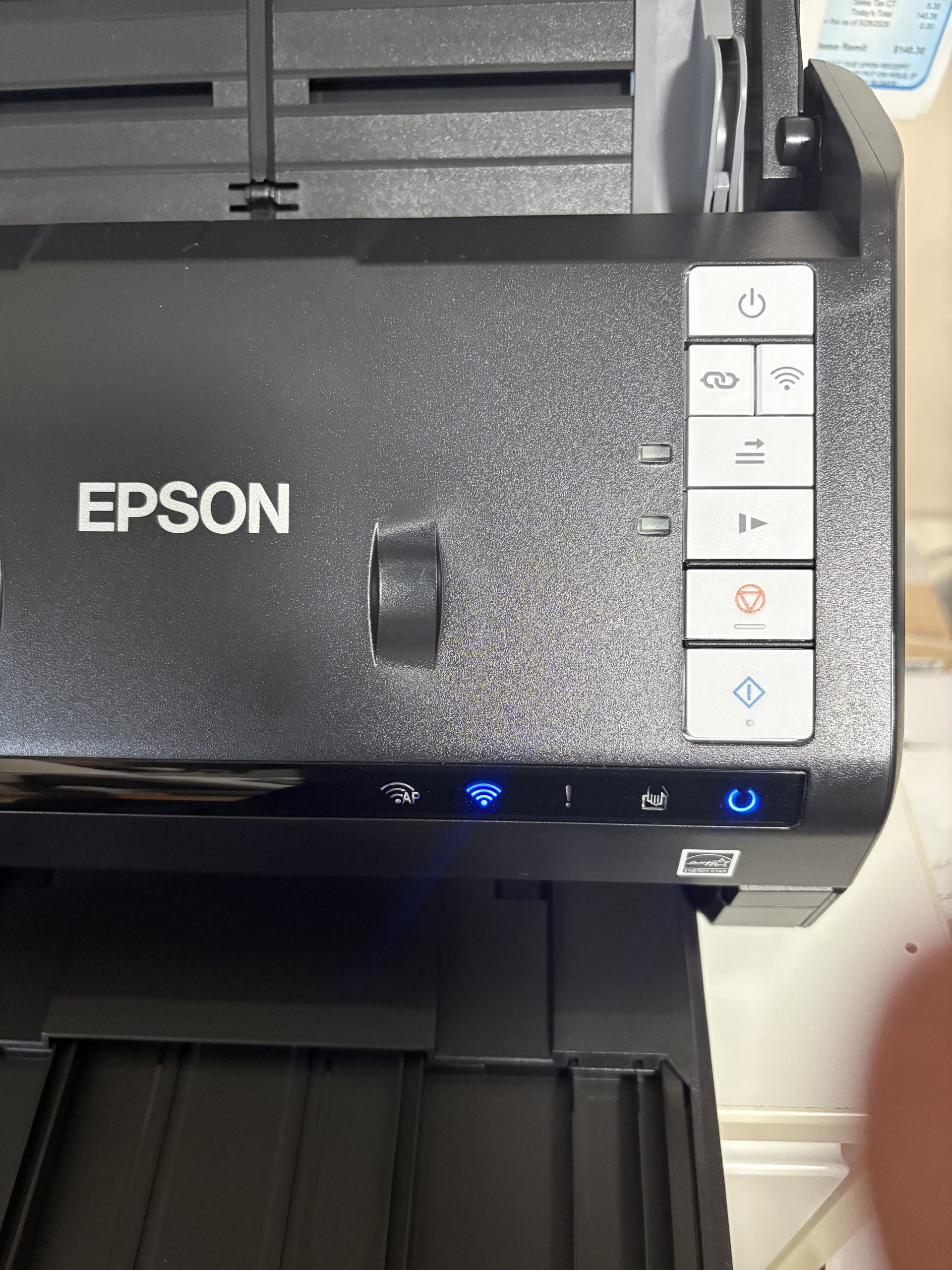
Instead of the screen, the ES-550W has a row of buttons that are well laid out and easy to use, as indicated below.
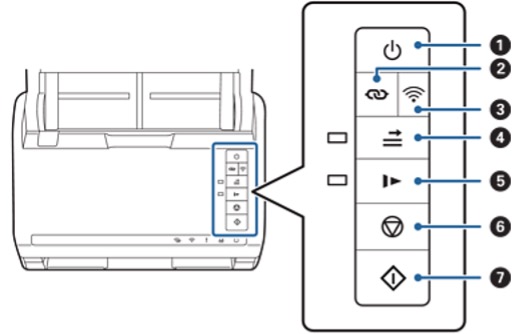
| Power button | Turns the scanner on or off. | ||
| Wi-Fi connect button | Press the WPS button on the access point, and then press the | ||
| Wi-Fi on/off button | Press this button for more than three seconds to turn off the wireless signal. Press again to turn on the signal. | ||
| Double feed detection skip button | Normally, an error occurs when detecting double feeds when loading envelopes, plastic cards, originals with labels or stickers, and so on. Press the | ||
| Slow mode button | Slow down the feeding speed when scanning. The light is on when this is enabled. Press this button in the following situations: when originals jam frequently when loading thin originals | ||
| Stop button | Cancels scanning. Finishes Automatic Feeding Mode. Cancels Wi-Fi settings by push button setup (WPS). Press this to release the error when a network connection error occurs. Cancels a firmware update over a network connection. | ||
| Start button | Starts scanning. Press this when cleaning the inside of the scanner. |
Additional functions are available with different combinations of buttons.
+
Hold down the and
buttons for more than three seconds to start PIN Code Setup (WPS). See the chapter “Network Settings” for more details.
+
Turn on the scanner while holding down the button to restore the default network settings.
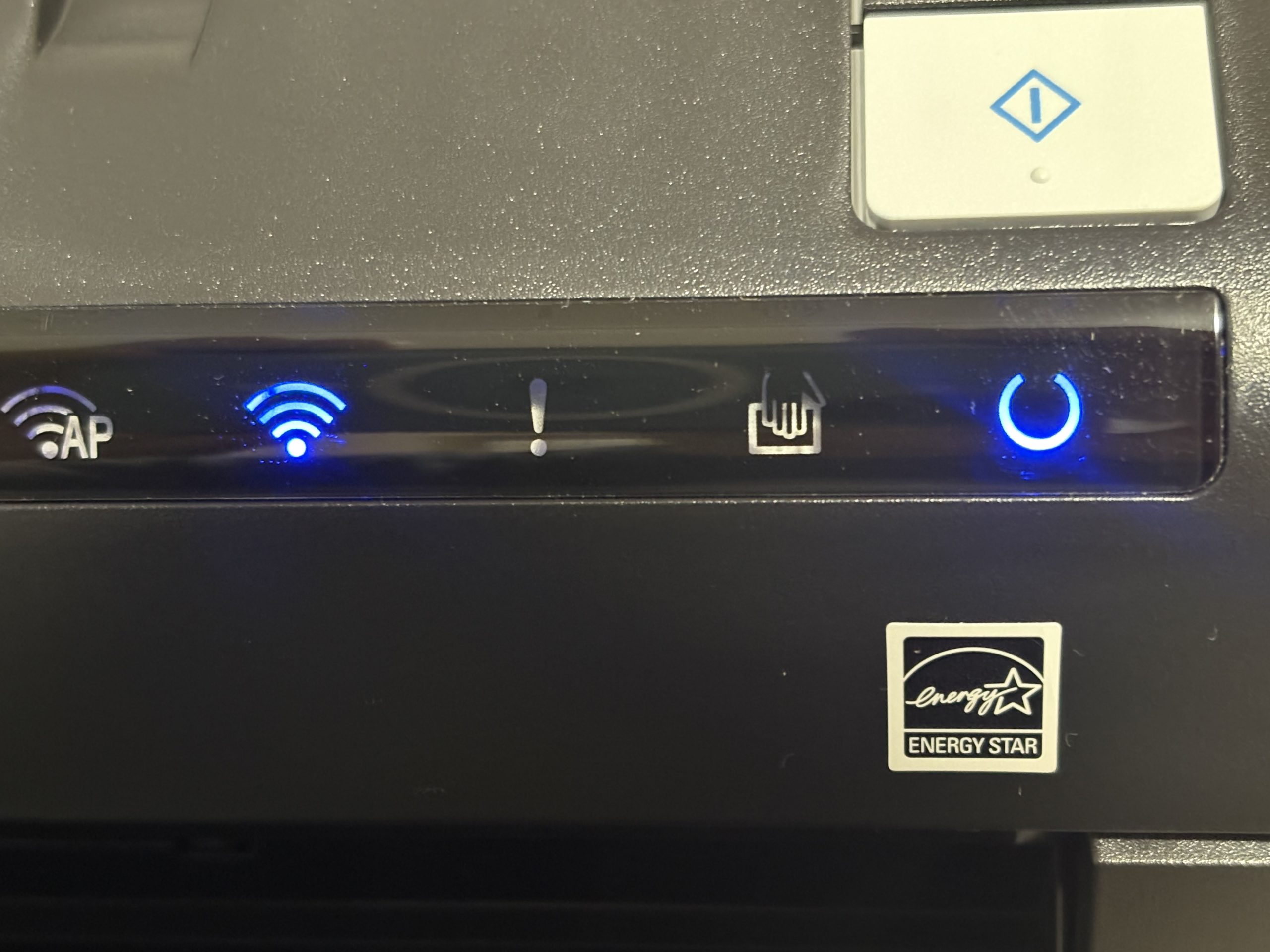
The ES-550W also has row of LEDs mounted on the front panel to provide status information for the device as illustrated below.

| AP mode light | Indicates that the scanner is connected wirelessly in AP mode. | |||
| Wi-Fi light | Blue indicates that the scanner is connected to a wireless (Wi-Fi) network. White indicates it is searching for an access point. | |||
| Error light | An error has occurred. See “Light Error Indicators” for more details. | |||
| Automatic Feeding Modelight | The scanner is in Automatic Feeding Mode. Scanning starts when an original is placed in the input tray. | |||
| Ready light | On: | The scanner is ready to be used. | ||
| Flashing: | The scanner is scanning, waiting to scan, processing, or sleeping. | |||
| Off: | The scanner cannot be used because the power is off or an error has occurred. | |||
| Skip double feed detection light | This is on when skipping double feed detection is enabled. | |||
| Slow mode light | This is on during slow mode. | |||
These LEDs provide similar information as what you would get from the error messages on the screen of the ES-580W. In our opinion, the LEDs are extremely functional and provide enough information when needed. In fact, we actually preferred the Wi-Fi LEDs on the ES-550W as a quick indication of the connectivity of the scanner compared to the error messages on the screen of the ES-580W.
Speed
When Epson announced their latest line-up of scanners, including the ES-550W, they stated that the new scanners were much faster than the previous models.
To test that, we used a test document that was 12-pages, double-sided, which would be 24 images to be scanned.
We used the same version of the Epson ScanSmart software which would have received any updates when we installed the ES-550W software. Here are the results of our test.
The ES-580W completed the scan in 19.3 seconds but it took an additional 2.01 seconds for the images to be fully rendered in the ScanSmart application for a total of 21.31 seconds.
The ES-550W completed the scan in 15.31 seconds, a full 4-seconds faster than the ES-580W. It only took another 1.78 seconds for the last page to be rendered in the ScanSmart application, for a total time of 17.09 seconds.
That is a full 4.22 seconds faster than the ES-580W. While some of that time difference seems to have come from some software enhancements, it is clear from our simple test that most of that time is the result of pure scanner speed.
While 4.22 seconds may not sound like a lot, consider how much more productive you will be if you shave a few seconds off of every scan you do in a day, a month or a year.
The Bottom Line
We have always been a fan of Epson products. Their EcoTank printers are the #1 supertank printers in the world and their printers were recently awarded scanner line of the year from Keypoint Intelligence for the second year in a row.
When we started our evaluation of the ES-550W we wondered if a scanner without a touch screen could possibly meet our needs. We are happy to say the ES-550W proved that it couyld, on all accounts.
With its easy set-up, intelligent control panel layout and easy to understand LEDs, coupled with the excellent ScanSmart software, this is a scanner that can hold its own whether in a home, home office or even a small business.
If you would like more information about the Epson ES-550W scanner, you can check out the official product page here.
The Epson ES-550W scanner is available exclusively at Costco.com.
We would like to thank the folks at Epson for providing the ES-550W for our testing and review.
If you liked this article, please consider sharing it with your friends and leaving a comment below. Also, don’t forget to “Like” us on Facebook and add the Apple Tech Talk channel to your Apple News app.
Apple Tech Talker




Leave a Comment
You must be logged in to post a comment.